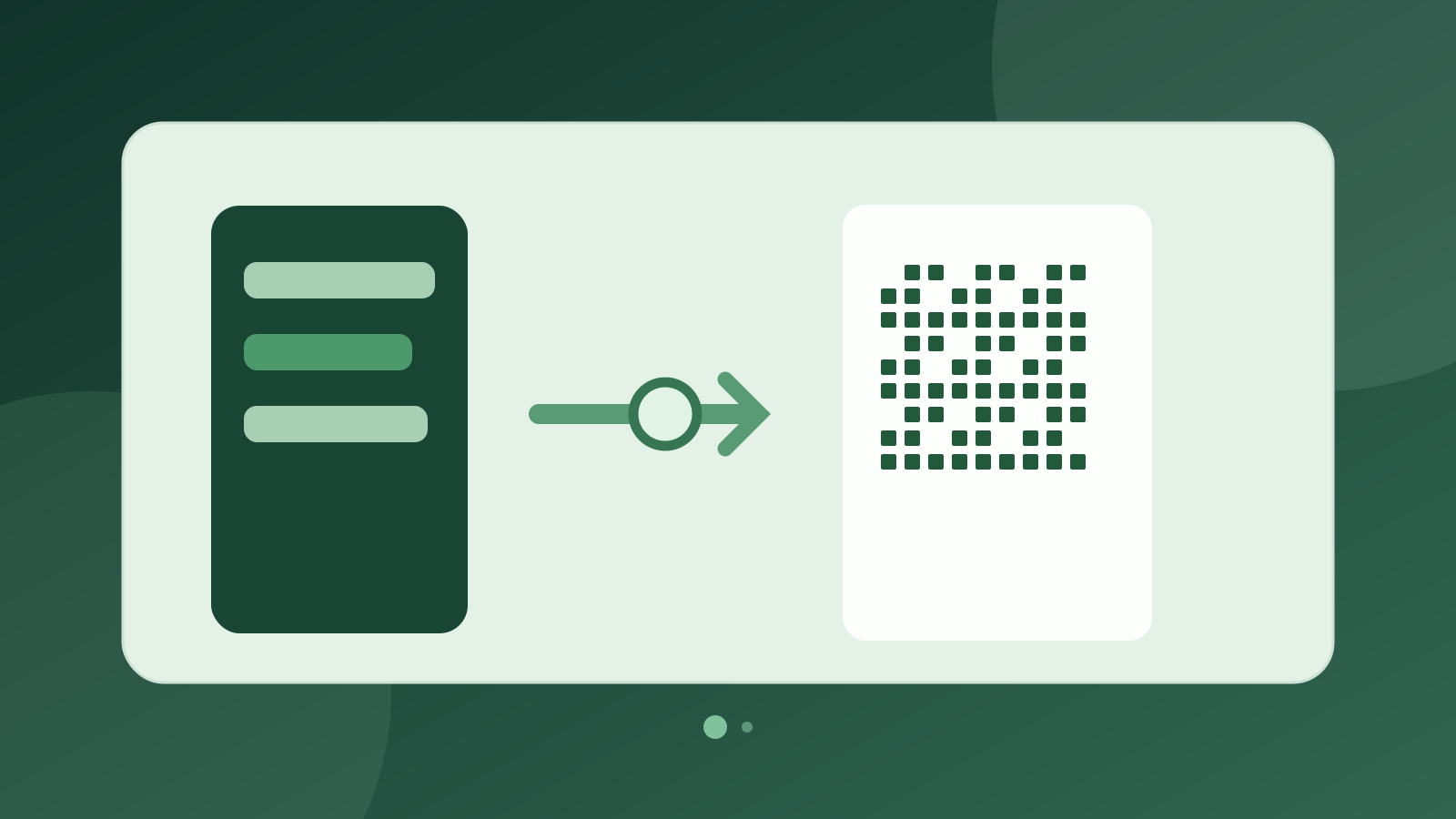
Goal: connect the current Business number without losing the mobile app
WhatsApp Coexistence setup connects an existing WhatsApp Business app number to Meta Cloud API while keeping the mobile app active. The Rezervem Manager connection screen and the desktop path for eligible independent Connect brands are different entry points.
Before starting, document who owns the phone number and Meta Business account, any previous provider and the person authorised to connect. The business should also decide whether to share past conversations. See also how Coexistence differs from classic Cloud API.
1. Confirm eligibility and number ownership
Verify the updated WhatsApp Business app works on the phone, the number is accessible and Meta Business Portfolio permissions are in place. Check for an existing Cloud API or BSP arrangement before changing anything.
If the number has already moved to classic Cloud API, Meta may show the classic signup outcome instead of Coexistence. In that case, evaluate the migration with the business owner and current provider.
- The Business app is active on the phone.
- The Meta business account and permissions are confirmed.
- Any previous BSP or Cloud API connection is reviewed.
- The business has approved number ownership and history-sharing decisions.
2. Open the appropriate Rezervem connection route
For Manager venues, select the option to connect the existing number in WhatsApp Business Cloud. Rezervem starts Meta's special Coexistence Embedded Signup, which is not the classic 'complete onboarding' form.
For an independent Connect brand, an authorised user can create a connection link on mobile and complete Meta login in a desktop browser. This self-service route depends on account access and enabled feature flags. Do not use the classic API registration form for Coexistence.
3. Enter Meta's code or follow the QR approval step
In the Meta window, choose the existing WhatsApp Business app account. The official Facebook Business conversation may ask the owner to connect to the Business Platform and enter a verification code. Some signup variants display a QR; when shown, follow the Business app's official approval instructions.
This is not a WhatsApp Web Linked Devices QR or restaurant guest QR. Do not share approval codes with others. If Meta asks about message history, follow the authorised business privacy decision.
4. Test the number through the app and API
After Meta approval, verify the Rezervem connection status. The number should complete in Coexistence mode and the WhatsApp Business mobile app should remain usable. Scanning the QR alone is not evidence of success.
Test a one-to-one app conversation with an authorised recipient and separately send an API message within the correct window or using an approved template. Distinguish sent status from confirmed delivery.
- Meta authorisation completed.
- The number is recorded as active Coexistence.
- An app-side test conversation was verified.
- An API delivery test was checked.
5. Check history, linked devices and the Connect inbox
Meta applies a limited window to permitted history synchronisation. Supported one-to-one messages from up to the most recent six months can be transferred; group chats are not synchronised, and some companion devices may require re-linking.
Rezervem's WhatsApp service stores history and echoes from Business app messages, but not every record is automatically forwarded to the Connect inbox. Test the exact conversation types visible for the account. Messages sent from the mobile Business app do not extend Cloud API's 24-hour customer service window.
6. Plan recovery and consent before campaigns
If Meta does not offer Coexistence, review the existing registration mode and account permissions. OAuth authorisation codes are single-use; if the session ends, restart Meta signup for a new code. Do not force classic registration and risk the Business app number.
Before live campaigns, review Meta charges, approved templates, WhatsApp opt-in, applicable Turkish commercial messaging requirements and sending permissions. Use the WhatsApp consent checklist and Business Platform setup guide.
- A responsible operator is assigned for failures.
- Previous providers and business ownership were reviewed.
- Test recipients and templates were verified.
- Delivery outcomes and access permissions were checked separately.
Frequently asked questions and official reference
Should I scan from WhatsApp Web? No. Follow Meta's approval instructions inside the WhatsApp Business app.
Will previous conversations always be transferred? No; consent, Meta limitations and product-specific integration scope apply.
Can I use the standard consumer WhatsApp Messenger app? This flow is designed for businesses using WhatsApp Business.
Official reference: Meta's guide to onboarding WhatsApp Business app users (accessed 17 November 2026).